Quick answer: Calendar Weather can use your current location or a manually entered city and region. You can edit the location, temperature, and condition, but weather availability is not guaranteed.
iOS and AndroidDressWise 4.0.8 (build 408) and later
Add weather
Open Calendar and choose a date.
Open the add-record menu and choose Weather.
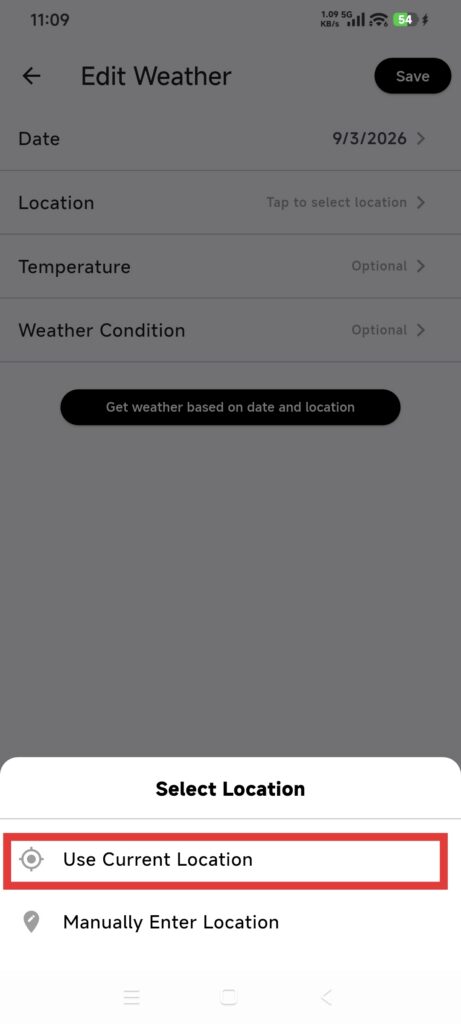
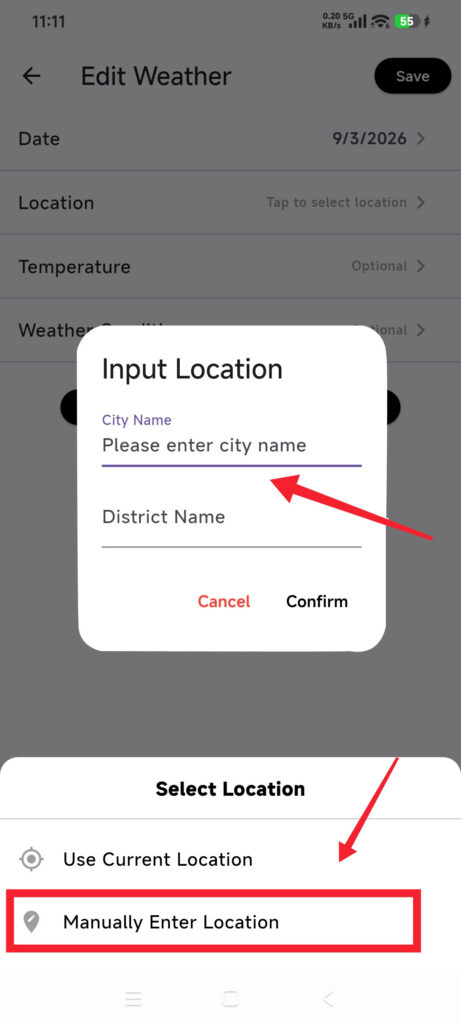
Choose Use Current Location or open manual location.
For current location, respond to the system permission prompt.
For a manual location, enter the required city; region may be blank. Tap Confirm and wait for the city to be recognized.
Check the date, location, temperature, and condition.
Edit fields when needed.
Save and return to the day’s details.
Confirm it worked
The date shows a weather record.
The city or region is the intended general area.
The temperature unit matches Calendar settings.
Reopening Weather keeps the values.
If weather is unavailable
Location is unavailable: check system location and DressWise permission, or enter a city manually.
A city is not found: use a standard city name or a broader city, then confirm. Do not save free text until a city is recognized.
A region is not found: leave region blank and edit the fields after the city succeeds.
Weather fetch failed: check the network and try later. Diary and wear records do not depend on Weather.
The value differs from an official forecast: use it as a wardrobe record, not for safety or travel decisions.