Applies to
- DressWise on iOS and Android.
- The English interface. Icon positions are generally unchanged if you switch languages.
Use the bottom navigation
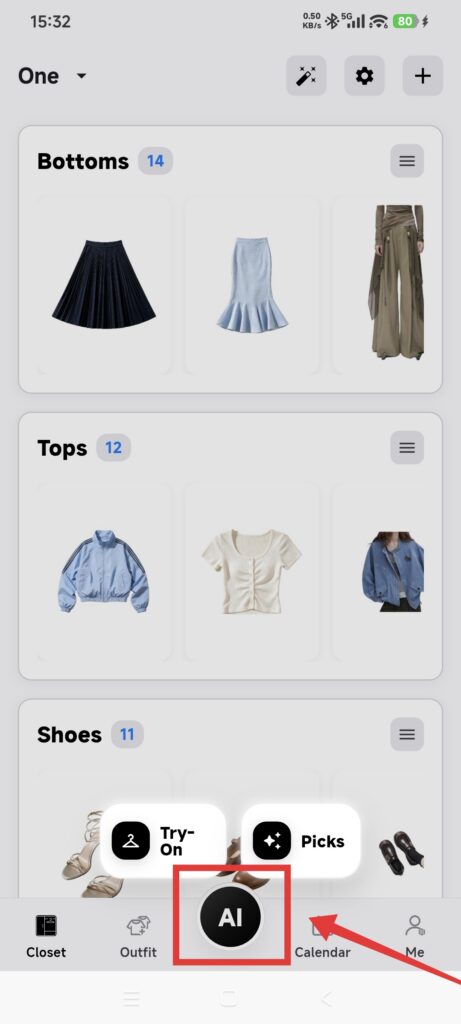
From left to right, the five positions are:
| Tab | What it is for |
|---|---|
| Closet | Manage closets and items, apply filters, and open closet settings |
| Outfit | Create collages, organize outfits, and open outfit details |
| Center AI button | Open shortcuts for AI Fitting and AI Picks |
| Calendar | Record weather, diaries, outfits, and items |
| Me | Open statistics, Membership Center, Fashion Coins, My Bills, AI tools, Settings, and Contact Us |
The center AI button is a shortcut, not a permanent tab. Tap it to expand the two AI actions, or tap outside the menu to close it.
To find Inspiration, open Me and tap the Inspiration count or label in the Closet Statistics card. To find all AI tools, open Me > One-click AI. If the page only offers to create a closet, create or switch to a valid closet first.
Check the current closet
- Open Closet.
- Check the closet name at the top of the page.
- Tap the name to open the closet list.
- Confirm that the intended closet has a checkmark.
- Return to the item list and check that its contents match the intended closet.
Confirm it worked
- The five bottom positions are visible.
- The center button opens AI Fitting and AI Picks.
- The correct closet name appears at the top of Closet.
- Inspiration and One-click AI are available from Me.
If something looks wrong
- A closet looks empty after switching: switch back to the previous closet. Closets keep separate data, so an empty list does not necessarily mean data was lost.
- The AI button does not respond: close any open dialog or keyboard and try again. If needed, reopen DressWise once.
- One-click AI only shows a create-closet action: create a closet or switch to an existing one.
- Labels differ from this article: check the app language and version. The controls shown in the current app are authoritative.