Before you begin
- Select the correct current closet.
- Use one clear item per image.
- Keep a stable connection and enough free device storage.
Batch-add items
- Open Closet and the add-item menu.
- Choose Batch Add from Album.
- Select the images in the system photo picker and confirm.
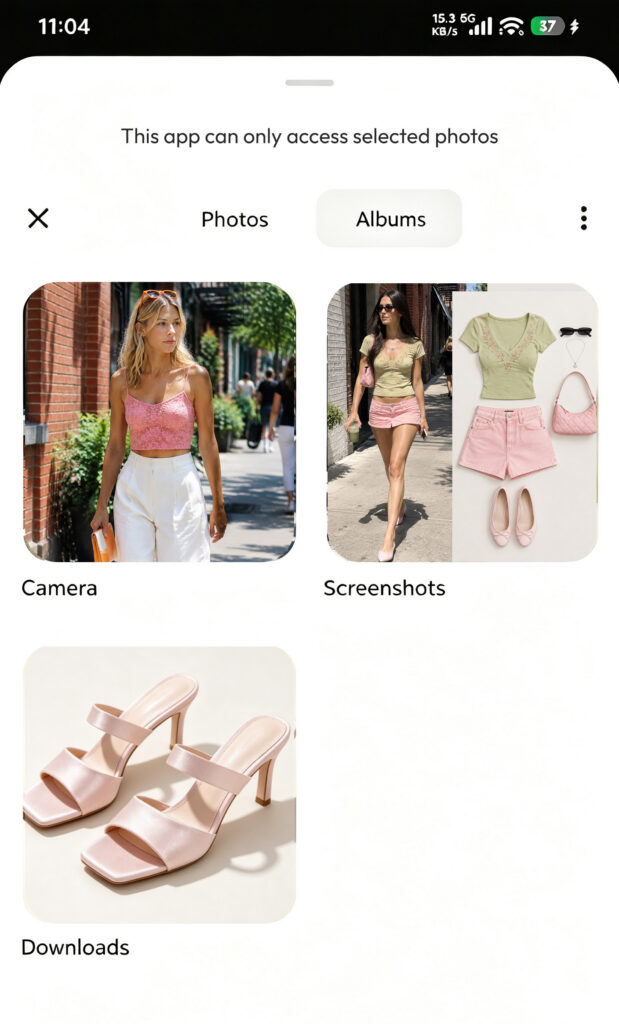
- Wait while DressWise processes each local image. Unreadable images may be skipped.
- Let the remaining images enter automatic import.
- Wait for the upload-and-recognition status.
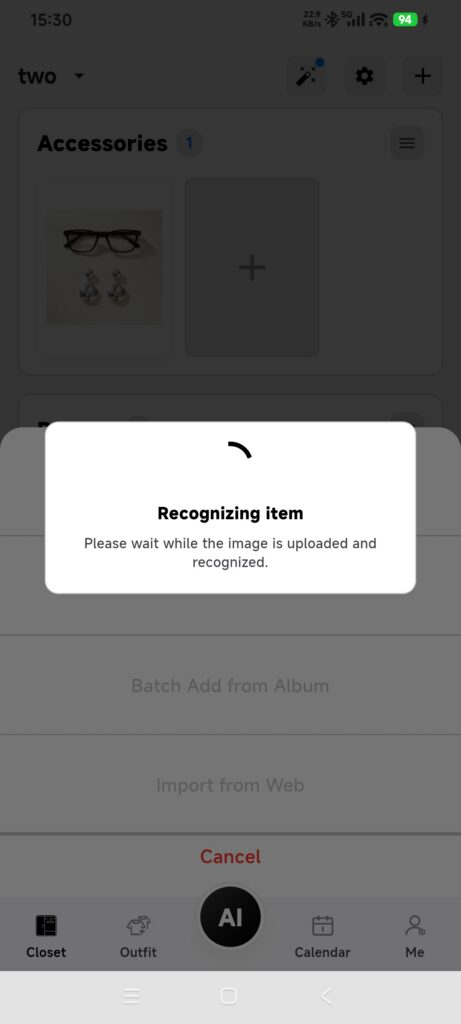
- Open each new item in Closet and check it.
- If an item was saved but recognition continues in the background, keep it and check again later. Do not import the same batch again.
Each image becomes a separate item. A single group photo does not become several items.
What automatic recognition does
- Creates an item in the current closet and keeps a reference to the original image.
- Uploads the image for cutout and attribute recognition.
- Applies recognized values such as category.
- Waits in the foreground for about 15 seconds, then may continue in the background.
- Keeps created content and schedules an upload retry when the network is unavailable.
Confirm it worked
- Every successfully processed image has one item.
- Duplicate taps did not create duplicate records.
- Cutouts and categories appear, or the app clearly shows a saved/background-processing state.
If part of the batch fails
- Some images were skipped: check format, readability, and photo permissions, then add only the failed images.
- Categories are wrong: correct individual items instead of deleting the entire batch.
- Recognition never finishes: check network and image sync, record the add time, and contact support.
- Blank items appeared while offline: keep them for the upload retry; do not import the same images again.