Start with five checks
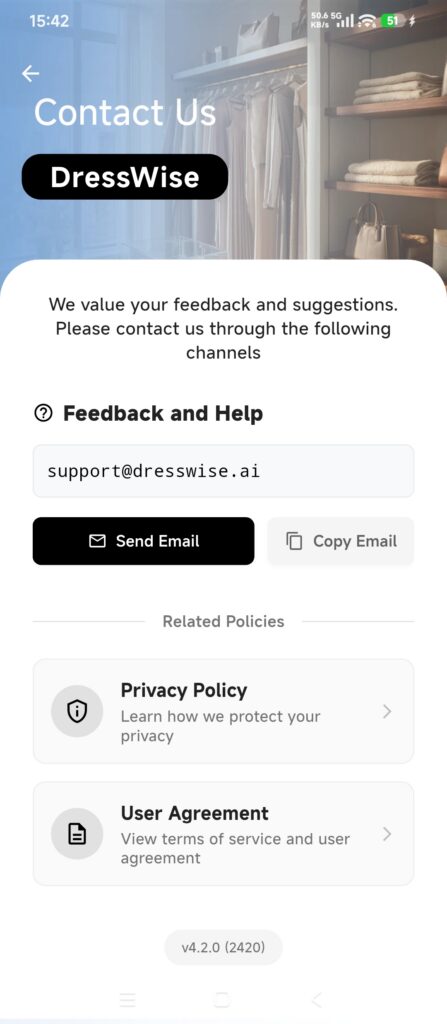
- Open Me > Contact Us and record the brand, version, and build.
- Record the time, time zone, and exact message.
- Check the sign-in method, email state, and current closet.
- Check network, device storage, and system permissions.
- Keep task history, My Bills, and payment evidence. Do not delete them first.
Match the symptom
| Symptom | Check first | Avoid |
|---|---|---|
| Cannot sign in | Brand, email, original method, password, network | Repeated guesses or a new account |
| Closet is empty after sign-in | Method, current closet, initialization | Rebuilding all data |
| Text appears without images | Image Syncing, remaining count, storage, network | Deleting and re-adding |
| AI Fitting item unavailable | Closet, category, mode, local image | Repeated image edits |
| AI Picks submission blocked | Minimum items, categories, local originals, exact prompt | Treating full routine sync as the only prerequisite |
| AI Picks is Generating | AI Picks page and submission time | Try-On History or repeat payment |
| AI Fitting is processing | Top of Outfit and submission time | Try-On History or repeat payment |
| Try-On final state | Try-On History > Completed or Failed | Looking for a processing entry in history |
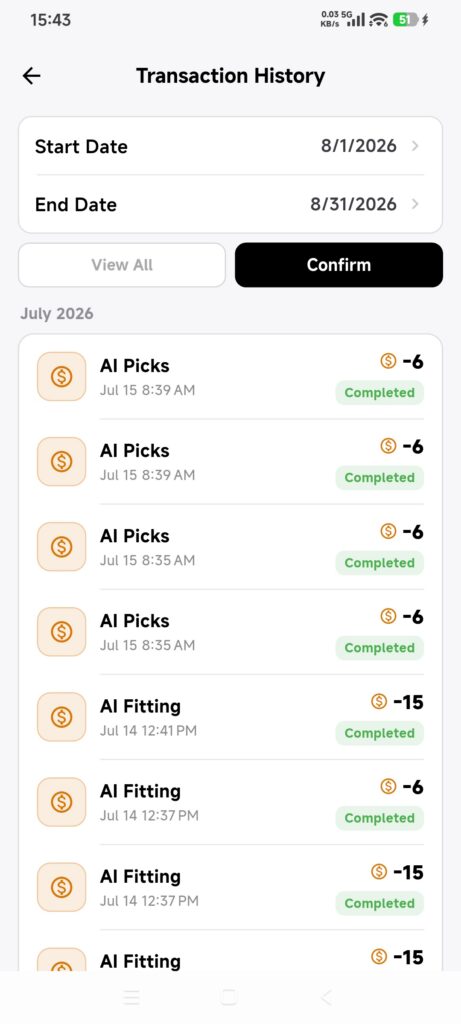
| AI charged without a result | Failure state, bill, task time | Deleting or resubmitting |
| Payment not credited | Payment provider, My Bills, membership/balance refresh | Paying twice |
| Weather unavailable | Network, location permission, manual city, service state | Safety decisions based on it |
Recover image sync
- Open Closet and check the cloud-download count.
- Tap it and record remaining and failed counts.
- Keep DressWise open with a stable connection.
- Check device storage.
- Wait for text and images to finish in stages.
- Use an on-page Retry for an initialization failure.
Do not sign out or clear data to refresh sync; local data that has not uploaded may be unrecoverable.
Recover AI and payment state
- Check the real status entry: AI Picks on its page, AI Fitting processing at the top of Outfit, and final try-on results in Try-On History.
- Open My Bills and check whether a benefit or Fashion Coins were charged.
- Compare payment status with the original provider.
- Wait for processing. Retry a failed download only; do not regenerate the task.
- Contact support when the status does not change.
AI Fitting can attempt to upload a local pending image when submitted. AI Picks can upload or replace unavailable candidates during submission. HD Image still requires the source image to be synced first.
Membership Center has no separate Restore Purchases button. If an Apple membership has not synced, check the Apple ID used for purchase, the original DressWise account, App Store subscription status, and My Bills before contacting support. Do not buy the plan again just to force a refresh.
Send a useful report
Subject: [DressWise] [Feature] short description

Brand: DressWise
Platform: iOS / Android
Device and OS:
App version and build:
Sign-in method: only the method actually used
Time and time zone:
Current closet: redacted name only
Page and steps:
Expected result:
Actual result and exact message:
Reproducible: yes / no
Task time or in-app order number:
Attachments: redacted screenshots or recording
Never send a password, verification code, payment password, full card number, identity document, provider password, or an unauthorized person image.
Confirm the issue is ready for support
- You know whether it concerns account, closet, sync, AI, or payment state.
- No duplicate item, AI task, or order was created.
- The report includes enough context without sensitive data.