Sign in with email
- Enter your registered email on the sign-in page.
- Read and accept the Privacy Policy and User Agreement.
- Tap Next.
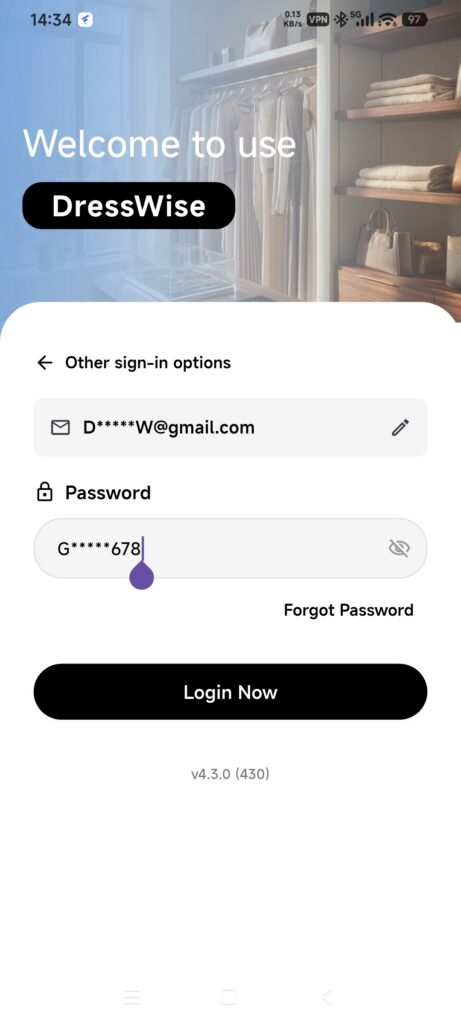
- Check the email shown on the password screen. Use the email summary or Other sign-in options to go back if it is wrong.
- Enter your password and tap Login.
- On a new device, keep DressWise open while essential data initializes.
The app prevents submission when the password has fewer than 8 characters. If sign-in fails, check the email and password before trying again.
Sign in with a provider
- On the first sign-in screen, check which provider icons are actually available.
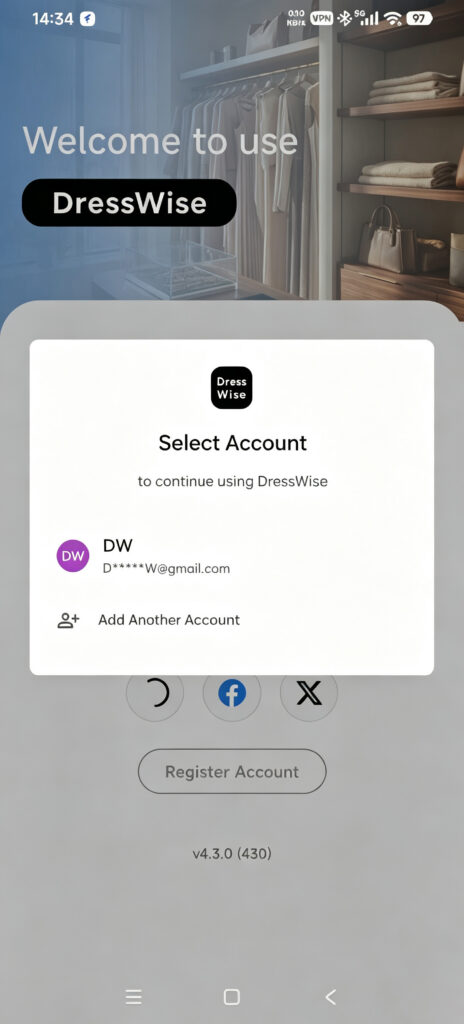
- Accept the agreements, then choose a provider.
- Complete authorization on the provider’s official page.
- If the provider does not return an email, enter one that you can access.
- Enter the 6-digit verification code sent to that email.
- Wait while DressWise initializes your data.
On a new device, start with the method originally used to create the account. Only use another method after it is explicitly linked under Account Security. Two methods that use the same email do not always identify the same account.
The current platform configuration lists these providers:
- iOS: Apple, Facebook, and X.
- Android: Google, Facebook, and X.
The sign-in page is the final source of availability.
Confirm it worked
- The main interface and bottom navigation appear.
- Me > Settings > System Settings > Account Security shows the expected email and provider links.
- Your existing data appears after you switch to the original closet. Images may continue downloading.
If you cannot sign in
- The closet is empty: verify the sign-in method and current closet before creating anything.
- Provider authorization was canceled: start it again and finish on the provider’s official page.
- A provider asks for an email: use a long-term email address and complete the 6-digit verification.
- A different method opens a new or empty account: sign out and use the original method. Do not recreate data in the empty account.
- The account is disabled or repeatedly fails: stop retrying, record the full message and time, and contact support.