Before you begin
- You have permission to save and use the images.
- The product page can open in DressWise.
- Final imports must use publicly downloadable HTTPS images.
Import product images
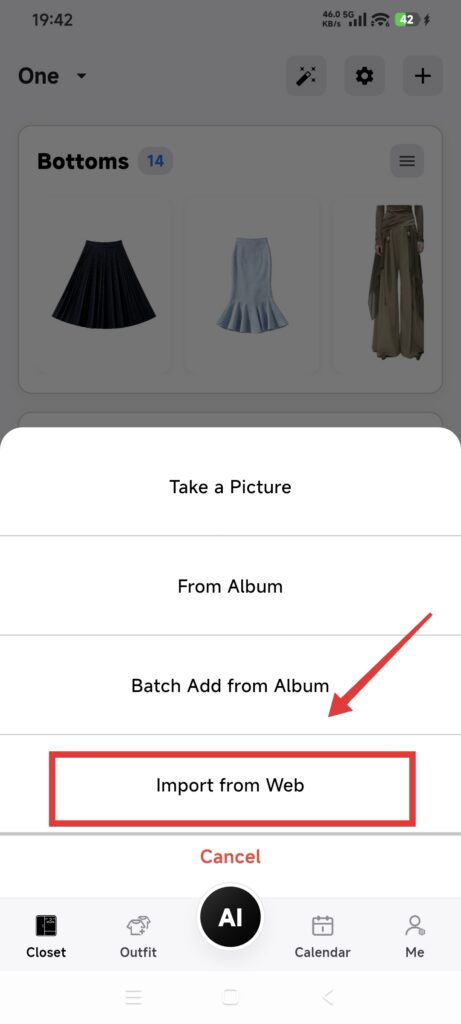
- Open Closet > Add Item > Import from Web.
- Paste a complete URL, or choose a shopping shortcut.
- Open the product-detail page in the built-in browser.
- Complete any sign-in or region selection required by the site itself.
- Tap Extract Images.
- Select the product images you need.
- Tap Confirm Selection.
- Wait while DressWise downloads, processes, and recognizes the images.
- Return to Closet and check each new item.
You can import at most 10 images in one final selection. If you select more, DressWise keeps the first 10.
Current shopping shortcuts are Amazon, Uniqlo, and ASOS. Other ordinary HTTP or HTTPS pages may also work, depending on their structure and access rules.
Confirm it worked
- The image panel shows images extracted from the product page.
- Each successfully downloaded image creates an item.
- New items keep a usable main image and enter automatic recognition.
If extraction fails
- The page asks for a login or CAPTCHA: use the site’s normal flow. Do not bypass access controls.
- No images were found: the site may use dynamic loading, anti-bot controls, or hotlink protection. Use an image you have permission to import instead.
- Only HTTP images were found: DressWise does not download insecure HTTP images.
- Some images failed: check Closet and add only the missing images from another permitted source.
- The page does not open: use a normal HTTP or HTTPS URL and remove extra text copied from a chat message.