Before you begin
- Use the email linked to your DressWise account.
- Make sure you can receive email at that address.
- Choose a new password with at least 8 characters.
Reset the password
- Enter your account email on the sign-in page.
- Accept the User Agreement and Privacy Policy.
- Tap Next to open the password screen.
- Tap Forgot Password below the password field. It is not shown on the first email screen.
- Check or enter your email, then tap Send Code.
- Find the newest 6-digit code in your inbox.
- Return to DressWise and enter the code.
- Enter the new password twice.
- Make sure the entries match and each has at least 8 characters.
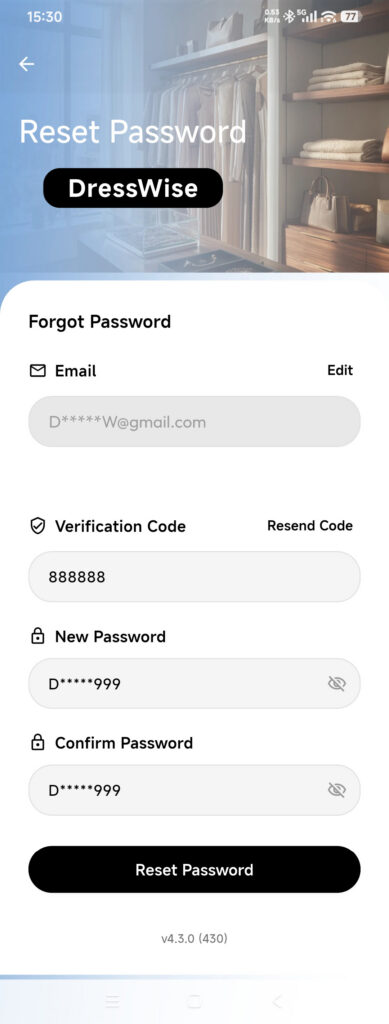
- Tap Reset Password once and wait for the result.
- Return to sign-in and use the new password.
A resend timer continues even if you leave and reopen the page. Wait for it to finish instead of repeatedly reopening the screen.
Confirm it worked
- DressWise reports that the password was reset.
- The app returns to the sign-in flow.
- The new password works and the old one no longer does.
If you cannot reset it
- No code arrived: check the email spelling, spam folder, mailbox filters, and storage; resend once after the timer ends.
- Forgot Password is missing: complete the email screen and tap Next first.
- The code is rejected: enter only the newest six digits without spaces.
- Reset Password is unavailable: check the code length and both password fields.
- You cannot access the email: do not create a replacement account. Recover email access or contact support about available verification options.
- The new password still fails: confirm the brand and email, then type the password manually to avoid hidden spaces.