Open the item
- Open Closet.
- Open the item.
- Use the item page as the editing page.
You can edit while recognition is still running. A later recognition result only fills a category that is still No Category and a color that is still at its initial value; it does not overwrite a category or color you set manually.
Edit details
- Check the main image and cutout edges.
- Check the name and category. Category affects filtering, statistics, and AI decisions about tops and bottoms.
- Tap a row for category, color, brand, size, season, location, tag, or purchase date and choose a value.
- After changing text such as name, price, or source URL, press Done or Return on the keyboard. Use the back arrow to leave so pending text can be submitted.
- Tap the image menu below the main image and choose Edit Image or Change Image.
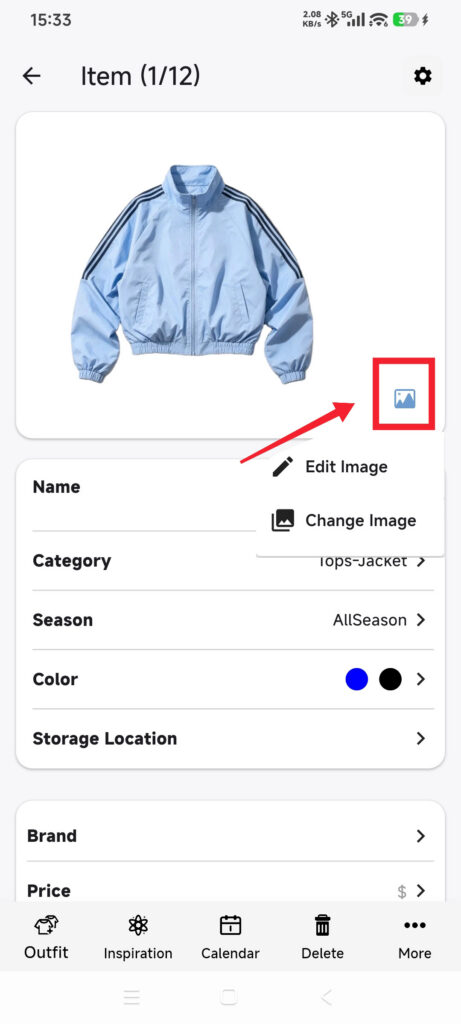
- Save changes in the image editor, or select a replacement from Photos and wait for processing.
- Inspect the subject and edges.
- Tap the top-left back arrow to leave; the page has no single Save button.
- Reopen the item and verify the changes.
| Detail | Used for |
|---|---|
| Category | Filtering, statistics, and AI item-type decisions |
| Color and season | Filtering and outfit suggestions |
| Brand, size, and location | Search and personal records |
| Price and purchase date | Statistics |
| Tags | Cross-category organization |
| Source URL and notes | Purchase, care, or material references |
Confirm it worked
- The list shows the corrected image and name.
- Reopening the item keeps the changes.
- The item appears under the expected category and filters.
- AI uses the corrected item type, or lets you choose it manually.
If changes do not stick
- Text disappeared: press Done or Return before leaving; do not force-close DressWise.
- Cutout edges are poor: use a clear image with a simple background and a complete subject.
- The needed category is missing: manage categories in Closet Settings, then return to the item.
- The image is still a placeholder: check image sync before deleting the item.
- The source URL no longer opens: the URL is only a record and is not guaranteed to remain available.