Open an Outfit
Open Outfit and choose the target entry. Before deleting, confirm that you no longer need its Calendar or Inspiration relationships.
Edit an Outfit
- Open the Outfit and enter edit mode.
- Change its occasion, season, tags, or other available fields.
- Use Edit Collage if you need to change the canvas.
- Save, close, and reopen to verify.
Link Inspiration or a date
- Choose Link Inspiration and select Inspiration from the current closet.
- Choose Add Date.
- Check the month and intended date before selecting it.
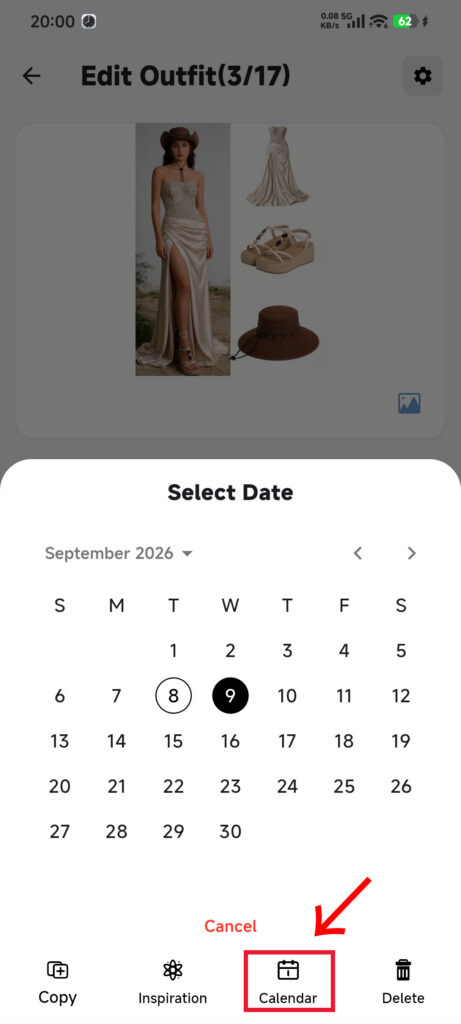
- Tap a date. DressWise saves it immediately and closes the date picker.
- Open that date in Calendar and check the Outfit.
The same Outfit is not added twice to one date.
Permanently delete an Outfit
- Open the Outfit.
- Choose Delete to open the confirmation dialog.
- Read the irreversible warning and confirm the correct Outfit. Choose Cancel to keep it.
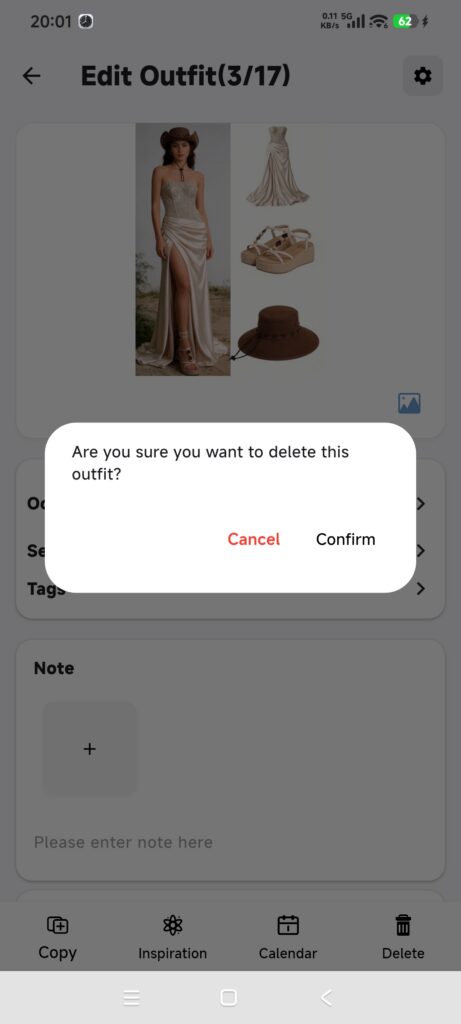
- Tap the final delete action only when you are sure.
- Wait for the list to return and check that the Outfit is gone.
Deleting an Outfit removes its Calendar and Inspiration relationships but does not delete the original items.
Confirm it worked
- Edited details or the canvas remain after reopening.
- The Outfit appears under linked Inspiration and the selected date.
- Deletion removes it from the list, Calendar, and Inspiration while original items remain.
If something is unexpected
- The date has no Outfit: check the save, date, and current closet.
- The same date cannot be added twice: duplicate prevention is expected.
- You want to undo deletion: Outfits do not go to Trash and cannot be restored.
- Canvas edits disappeared: open Edit Collage, save, then leave the page.