Before you begin
- Select the correct current closet.
- Allow camera or photo access.
- Use a clear image with one main item whenever possible.
Add one item
- Open Closet and check the closet name.
- Tap the add-item control.
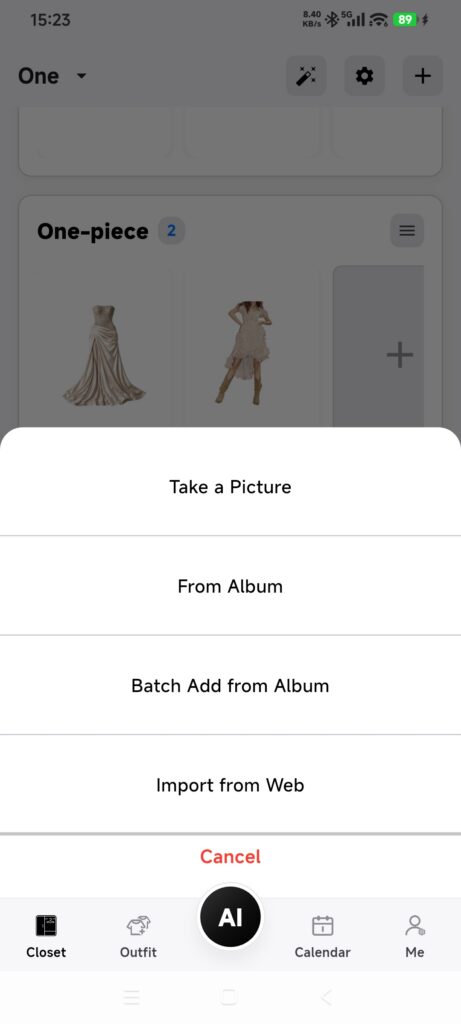
- Choose Take a Picture or From Album.
- Take or select one image.
- Wait while DressWise shows the item-recognition status.
- Do not tap the add control again while processing continues.
- Return to Closet and open the new item.
- Correct its category, color, or other details if needed.
The result may say that the item was recognized and saved, saved without complete recognition, or will continue in the background. In all three cases, check Closet before adding the image again.
Confirm it worked
- A new item appears in Closet.
- DressWise reports that it was saved or that recognition will continue.
- The main image and recognized details appear when you reopen it.
If adding fails
- The camera does not open: allow camera access in system settings, or use Photos.
- Photos is empty or unavailable: check whether access is limited to selected photos.
- Processing continues in the background: stay online and check the item later; do not add the same image again.
- A record exists even though processing failed: inspect the existing item before editing or deleting it.
- Recognition is inaccurate: edit the item manually. Plain backgrounds and one item per image usually work best.