Open the batch action
- Open Outfit.
- Tap the add control.
- Choose Batch Add from Album. The menu also offers Collage, AI Picks, and AI Fitting.
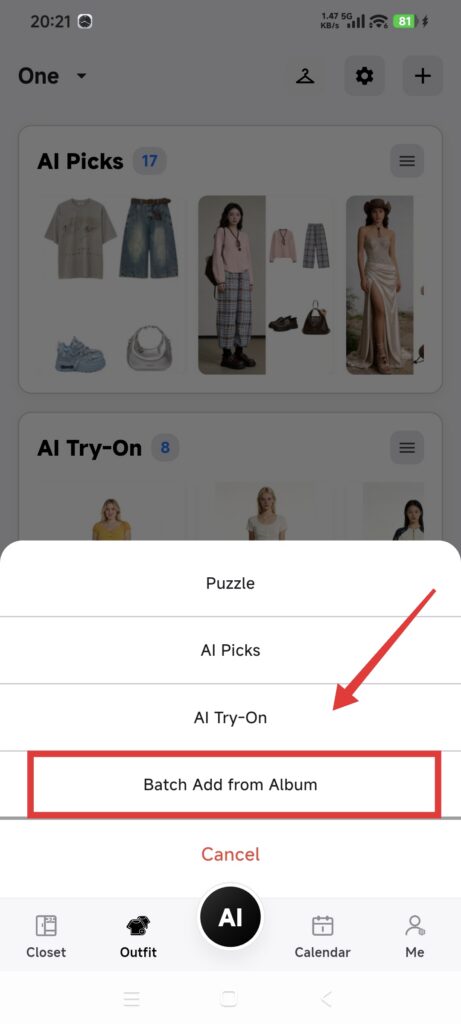
- Confirm the current closet and photo permission.
Import the photos
- Select one or more outfit photos.
- Confirm the selection and wait for processing.
- Check occasions, seasons, and tags on the Outfit details page.
- Save and wait for batch creation to finish.
- Return to the Outfit list and open each new entry.
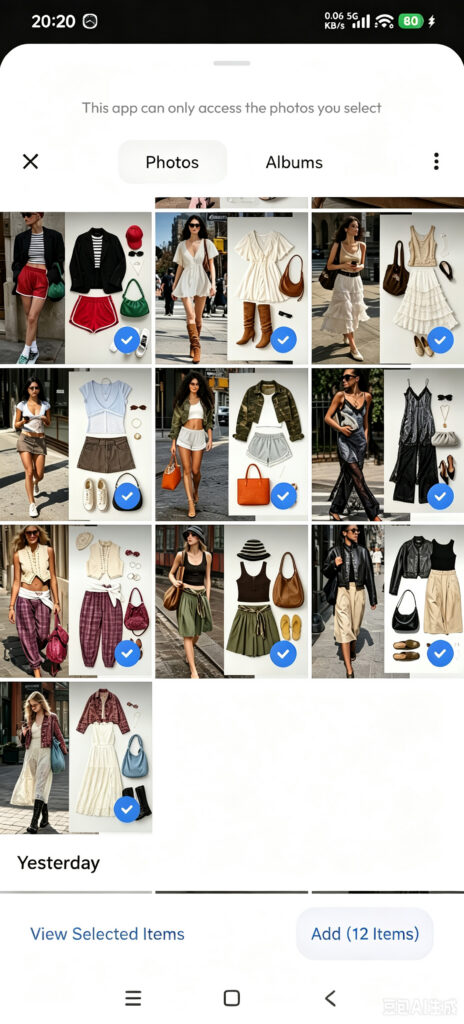
One selected photo becomes one Outfit. To combine closet items on a canvas, use Collage instead.
Confirm it worked
- The number of new Outfits matches the number of successfully processed photos.
- Each Outfit has its own main image.
- The entries belong to the current closet and keep the selected metadata.
If only some photos import
- Check format, permission, and local readability, then add only failed photos.
- Batch import is one photo per Outfit; use Collage for a multi-item canvas.
- If Save is unavailable, select at least one valid image.
- Clear Outfit filters and check the current closet if a new entry is missing.