Choose a date
- Open Calendar.
- Change the month and select a date.
- Confirm the current closet.
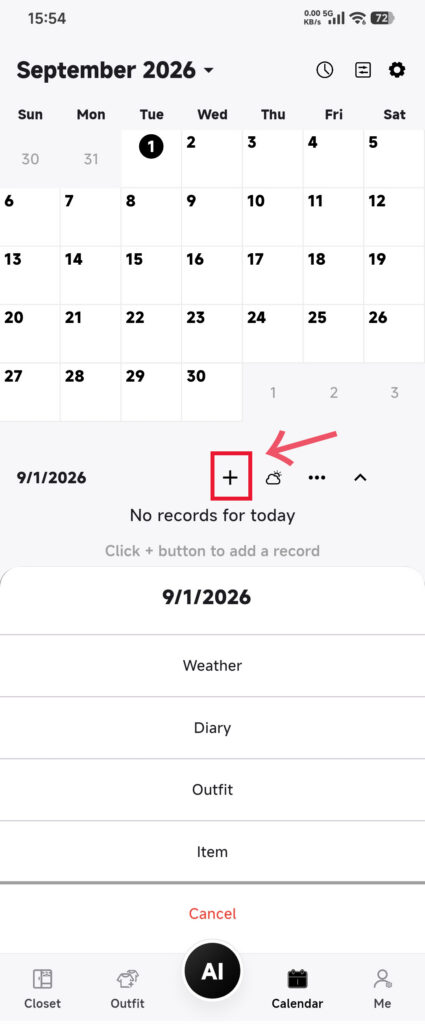
Add items
- Open the add-record menu.
- Choose Item.
- Select one or more items from the current closet.
- Confirm and wait for Calendar to return.
- Check the item in the day’s details.
Add Outfits
- Open the add-record menu.
- Choose Outfit.
- Select one or more existing Outfits.
- Confirm and return to Calendar.
- Check the day’s details.
If an item or Outfit is already recorded on that date, DressWise skips the duplicate.
Confirm it worked
- The selected date shows the new item or Outfit.
- The date summary updates.
- Repeating the selection leaves one record.
If a record is missing
- It may already be recorded; check the day’s details first.
- Check the current closet, filters, and image availability. Memory Box items can appear in selectors; items in Trash cannot.
- For a wrong date, remove that day’s record and add the original item or Outfit to the correct date. Do not delete the source record.
- On multiple devices, finish sync on one device before checking the other.