Use Timeline
- Open Calendar.
- Choose Timeline.
- Browse records by date. The initial range is usually the most recent 183 days.
- Filter by keyword, date range, temperature range, or Diaries only when available.
- Open a record for details.
- To see records older than 183 days, set an earlier start date; clearing filters does not expand the default range.
- If there are no results, check the current closet and filters.
Adjust Calendar display
- Open Calendar’s settings menu.
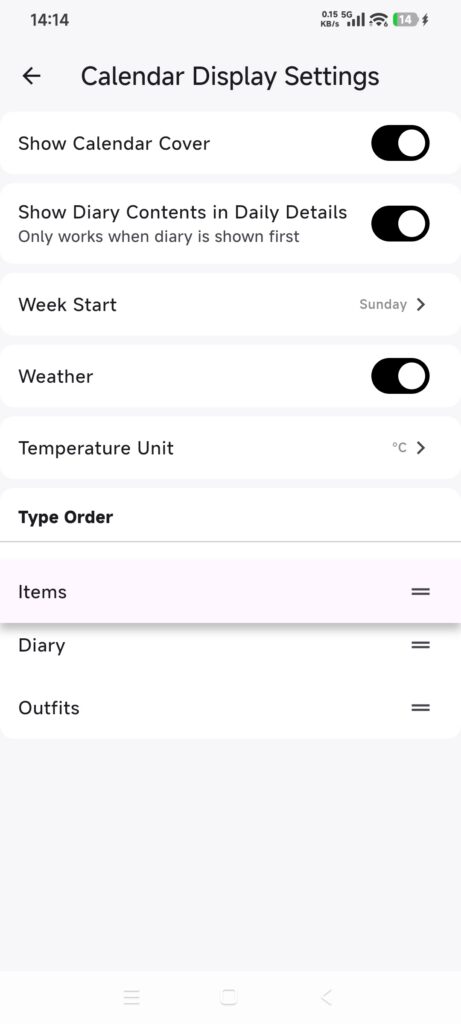
- Choose Calendar Display Settings.
- Adjust the available options:
- Show cover images;
- Show diary text in daily details;
- Week start day;
- Weather on or off;
- Celsius or Fahrenheit;
- The order of Items, Diaries, and Outfits.
- Drag the handles to reorder content types.
- Return to Calendar and check the result.
Diary text in daily details has an effect only when Diaries are first in the content order.
Confirm it worked
- Timeline matches the selected filters.
- Calendar uses the chosen week start and temperature unit.
- Weather visibility and content order match the settings.
If a setting has no effect
- Diary text is not shown: move Diaries to the first position.
- Weather is hidden: turn Weather on and check that the date has a weather record.
- Timeline is empty: clear keyword, temperature, and diary-only filters, and set an earlier start date for older records.
- A setting does not persist: leave and reopen Calendar Display Settings, then record the exact option and time for support.