Open Model Management
- Tap the center AI button and choose AI Fitting, or open Me > One-click AI > AI Fitting.
- Tap the person icon on the model card and open Model Management.
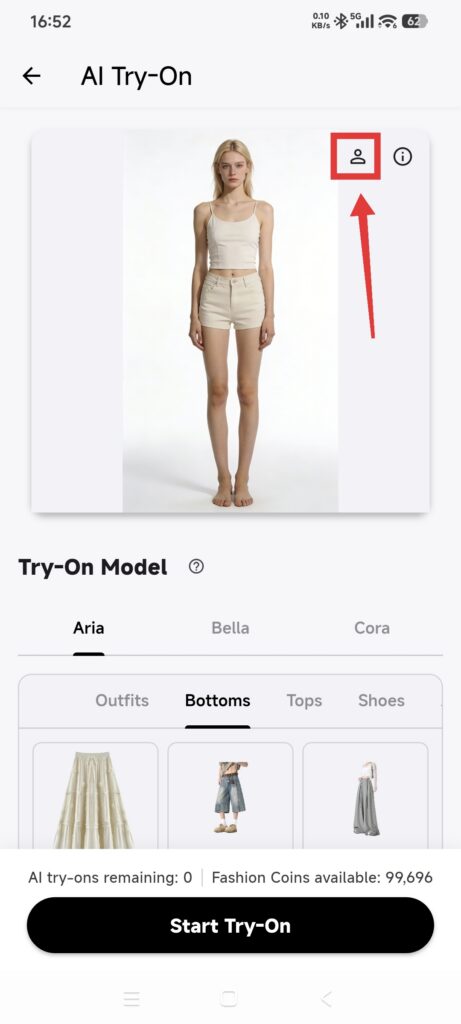
Use a single-person, front-facing, fully visible, evenly lit photo with minimal obstruction. Use your own image or one for which you have explicit permission.
Choose a built-in model
- Open System Models.
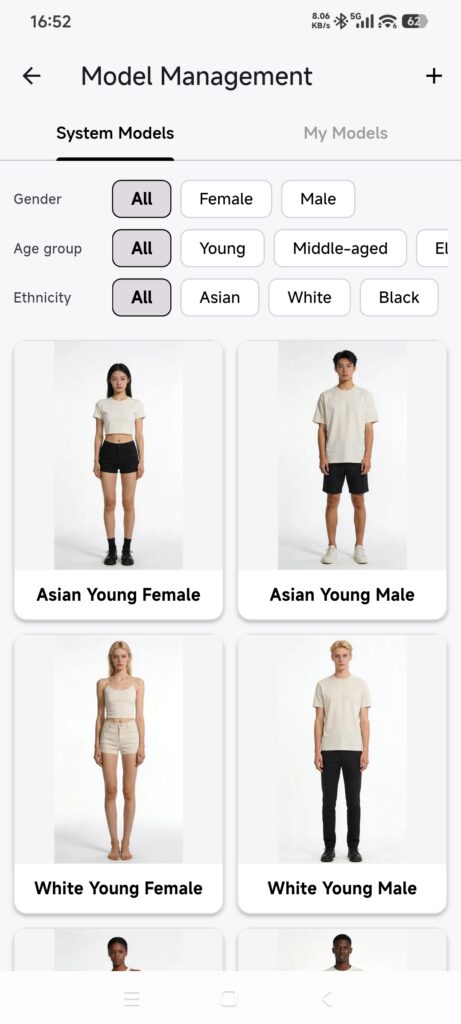
- Tap a model.
- DressWise returns to AI Fitting with that model selected.
Create a custom model
- Tap + in Model Management.
- Choose an image from Photos. The add flow does not provide a direct camera button.
- Optionally enter a model name and body parameters such as skin tone, height, weight, chest, waist, hips, shoulder, head, thigh, calf, leg, and foot measurements.
- Use a name that is not already in use.
- Tap Confirm and wait for upload and processing.
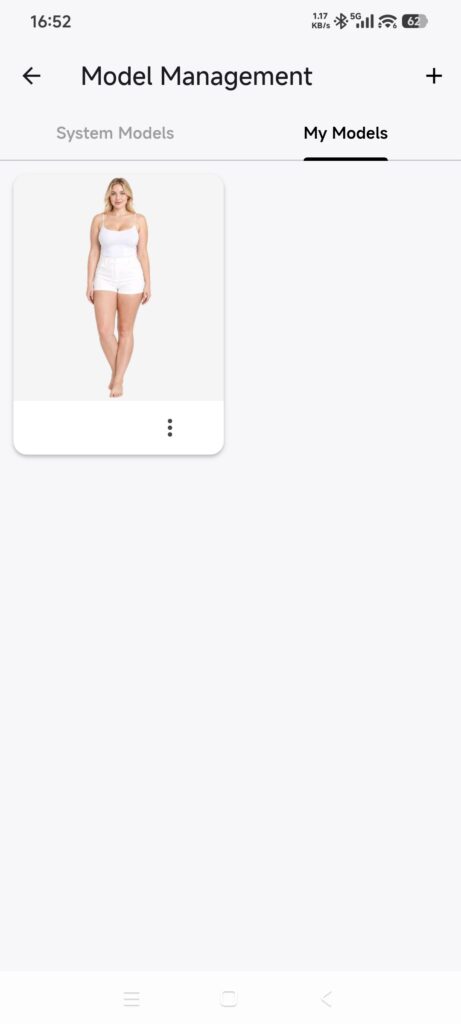
- Open My Models and select the new model.
- Return to AI Fitting and confirm it is available.
If upload fails, DressWise rolls back the incomplete model. Do not repeatedly create the same name.
Edit or delete a custom model
- Open My Models and tap the three-dot menu on a model.
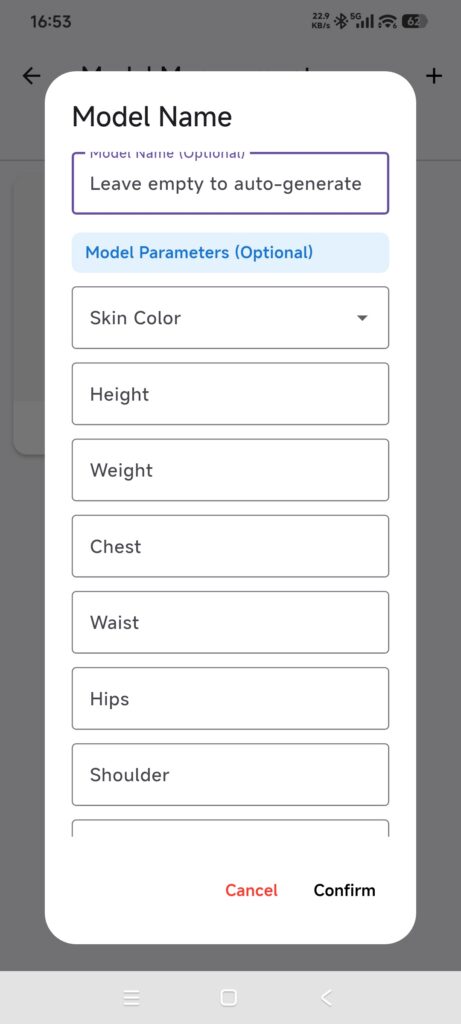
- Choose Edit, change the name or parameters, and tap Confirm.
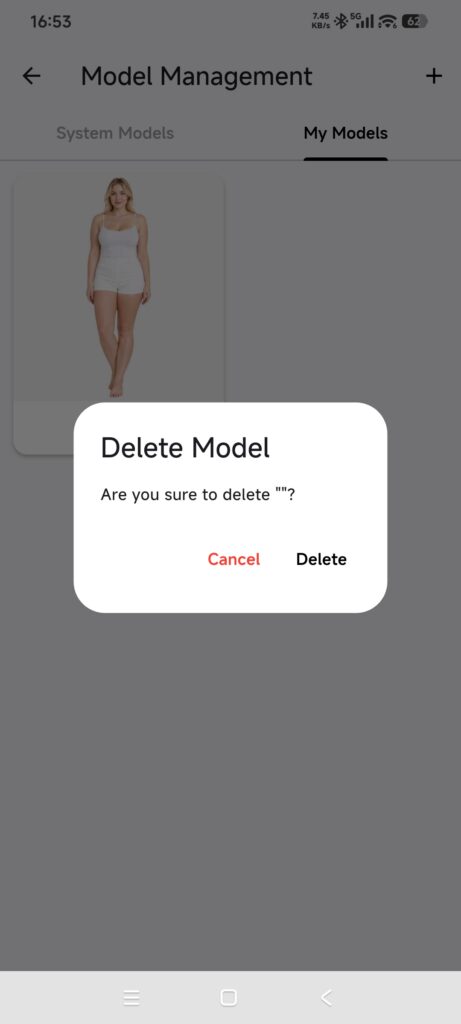
- To delete, choose Delete, read the irreversible warning, and cancel if you are unsure.
- Tap the final Delete action only when the model is no longer needed.
Editing cannot replace the uploaded photo. Create a new model when you need a different photo. Deleting removes the model and its related source/cutout records and cannot be undone in the app.
Confirm it worked
- The model appears in My Models.
- Its image loads instead of staying a placeholder.
- AI Fitting shows it as selected.
- Edits persist, and a deleted model disappears.
If model setup fails
- The model does not appear: keep DressWise open and online until upload and processing finish, then reopen My Models.
- The photo is rejected: use a clear, authorized image and create a new model; editing cannot replace the original upload.
- The model is missing from AI Fitting: confirm that you are using the same closet where the model was created.