Before you begin
- Open the target Inspiration through Me > Closet Statistics > Inspiration.
- Have items or Outfits available in the current closet.
Link items
- Open the Inspiration edit page.
- Choose Link Items.
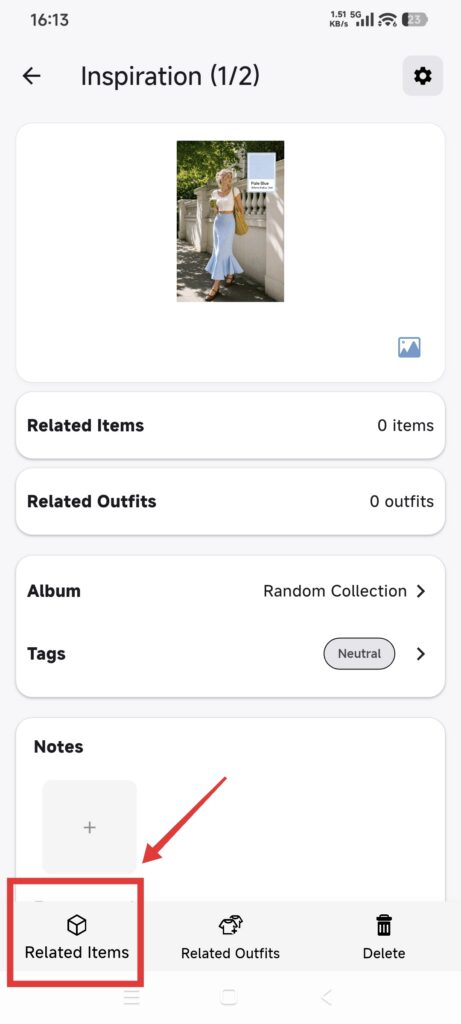
- Use categories or filters to find the items.
- Select one or more items and confirm.
- Return to Inspiration and check the count and thumbnails.
Link an Outfit
- Tap Link Outfit at the bottom of the Inspiration page.
- Choose Existing Outfit.
- Select an Outfit from the current closet.
- Confirm and return.
- Reopen Inspiration and check the relationship.
Linking does not copy or move the source records. Memory Box items can remain in existing relationships and can appear in the item selector. Items moved to Trash are hidden from relationships, Calendar, and new selectors.
Create an Outfit from Inspiration
- Open Link Outfit.
- Choose Create New Outfit.
- Choose Collage or Batch Add from Album.
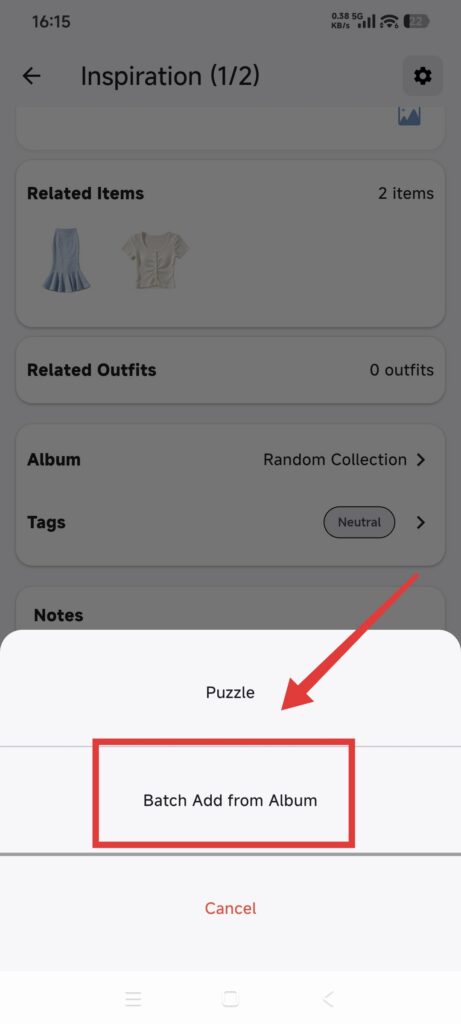
- For Collage, check the carried-in Inspiration image, edit, and save.
- For batch import, select images from the Photo Album, check Outfit details, and save.
- Return to Inspiration and check the new linked Outfit.
Confirm it worked
- Inspiration shows the expected linked items and Outfit.
- Linked records open their own detail pages.
- A new Outfit appears in Outfits and keeps the Inspiration relationship.
If linking fails
- The picker is empty: check the closet, clear filters, and confirm images are available.
- An item is missing: items in Trash are filtered out; Memory Box items can remain selectable without being restored.
- A link disappeared: check whether the item entered Trash or the Outfit was permanently deleted.
- The wrong closet is shown: switch back to the original closet and repeat.
- You left a new Outfit before saving: start the flow again; unsaved changes may be lost.