Before you begin
- Select the correct closet.
- Open a source image that belongs to an item, Outfit, Inspiration, or successful AI Fitting result.
- The source image must already be synced to the cloud; a local-only image cannot be submitted.
- Check the live membership and resolution entitlement.
Submit an HD Image task
- Open the source page and tap its image.
- Open the image preview or image actions.
- Choose the download action and Member HD Image Download.
- Review the live resolution, membership requirement, and remaining quota.
- Choose an available resolution.
- If your plan does not support it, review the upgrade option instead of repeatedly tapping it.
- Submit once and wait for the HD Image task confirmation.
- Do not submit the same resolution for the same image again.
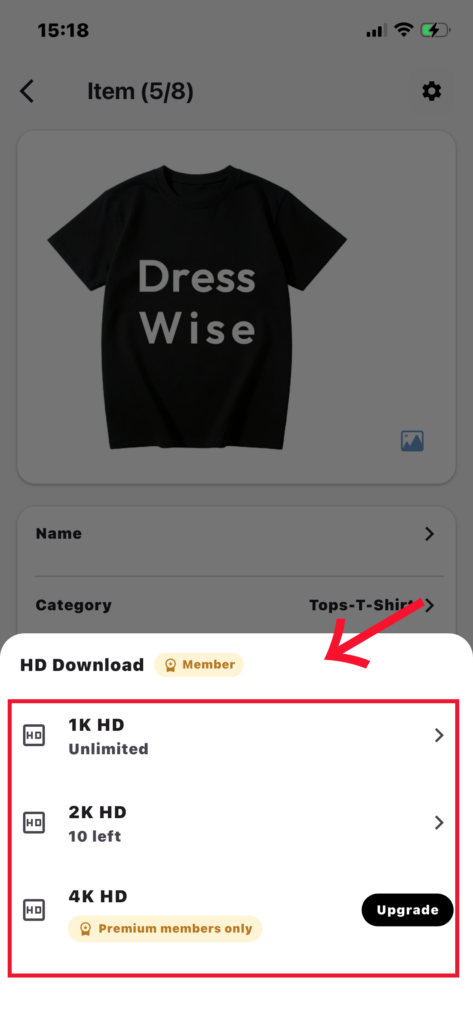
Me > One-click AI > HD Image opens the local result library; it is not a source-image picker. Start a new task from the source preview instead.
Understand task states
- An identical result already exists: open My HD Images.
- Another resolution is processing: wait for it to finish.
- Membership is unsupported or the monthly quota is used: check Membership Center.
- The source is not synced: return to Closet and wait for upload.
View, save, or delete a result
- Open the completion result or Me > One-click AI > HD Image.
- Open an HD Image is ready result.
- Preview it or choose Save to album.
- Grant photo access and wait for the save to finish.
- Select one result, or enter selection mode for batch deletion.
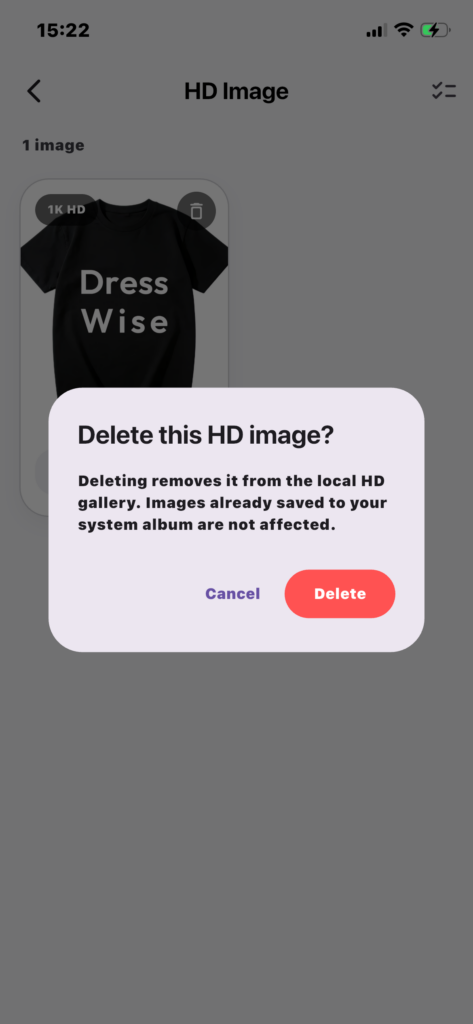
- Tap Delete and read the confirmation.
- Check the selected results and cancel if unsure.
- Delete only after saving anything you need to keep.
Deletion removes the app record and result file and syncs that deletion to other devices. A copy already saved to Photos is unaffected.
Confirm it worked
- The HD Image task reaches a ready state in My HD Images.
- The saved copy appears in Photos when you choose Save to album.
- Deleting a result removes it from My HD Images while an already saved Photos copy remains.
If an HD Image is unavailable
- No add button in My HD Images: start from a source preview.
- No HD action: confirm the page contains a supported main or result image.
- Source not available: wait for cloud sync.
- Processing is stuck: refresh later instead of creating a duplicate.
- Save failed: check photo permission and device storage, then retry saving only.
- A result disappeared on another device: deletion is account-synced; save important files first.
- Quota was used without a result: keep the task details and contact support.