Switch the app language
- Open Me > Settings > System Settings > Language.
- Choose a language or the system-language option shown by the app.
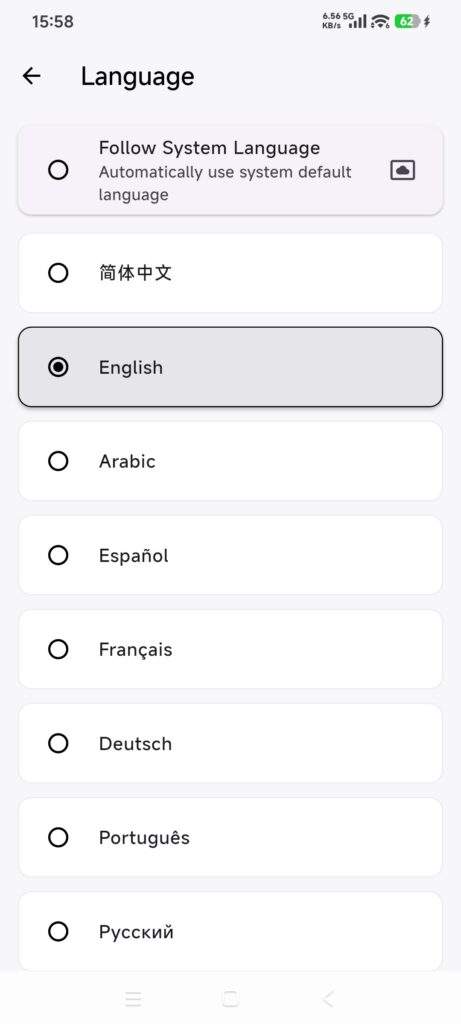
- Wait for the interface to refresh.
- Reopen the feature you were using and check its text.
DressWise may offer Arabic, Bengali, German, English, Spanish, French, Hindi, Indonesian, Japanese, Korean, Portuguese, Russian, Urdu, Simplified Chinese, and Traditional Chinese. Provider and payment pages may use the device or account language.
View the policies
- Open Me > Contact Us, or use the policy link on sign-in or Membership pages.
- Choose Privacy Policy or User Agreement.
- Check the DressWise brand, title, and domain.
- Retry after checking the network if the page fails.
Use the formal policy reached from the current app. Do not replace it with an ad or search result.
Contact support
- Open Me > Contact Us.
- Record DressWise, the app version, and build number.
- Use the support email or contact method shown there.
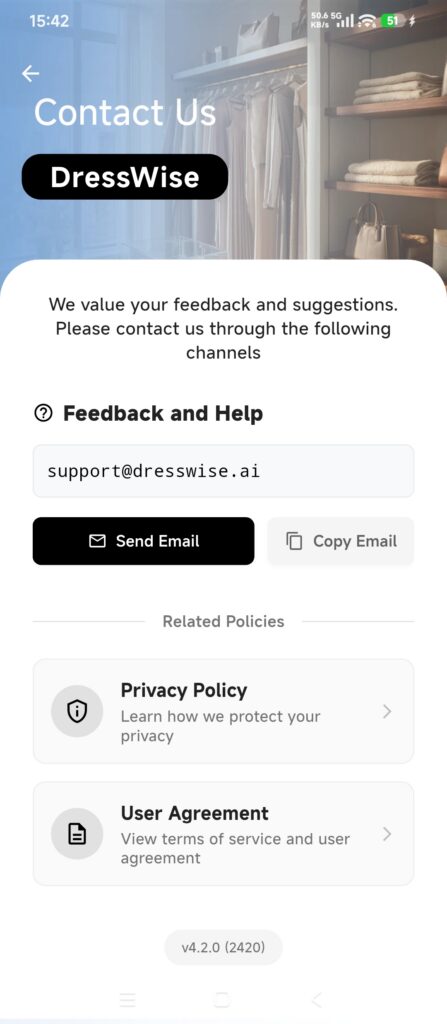
- Include the page, time, steps, expected result, and exact message.
- Redact screenshots, orders, and account information before sending.
The current support email is [email protected]. The official app website is www.dresswise.app. Always follow the live in-app links if they differ.
Confirm it worked
- Main screens use the selected language.
- Policy pages identify DressWise rather than another brand.
- A support request includes version, time, steps, and redacted evidence.
If language or links fail
- Some screens did not change: reopen them. Provider pages may use their own language.
- A policy does not open: check the network and the domain shown by the app.
- Mail does not open: copy the displayed support address into a trusted mail app.
- You do not know what to send: use the feedback template in the troubleshooting article.