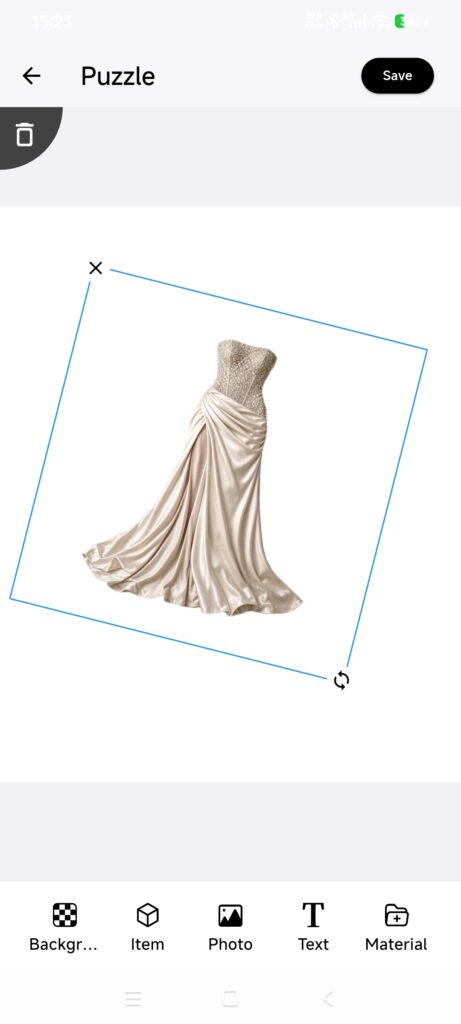
Quick answer: A collage places several items from the current closet on one canvas and saves them as an editable Outfit that you can link to Calendar and Inspiration.
iOS and AndroidDressWise 4.0.8 (build 408) and later
Before you begin
Have item images available in the current closet.
Confirm that the Outfit tab uses the intended closet.
Build a collage
Open Outfit.
Tap the add control and choose Collage.
Select items from the current closet and confirm.
Drag items on the canvas and use gestures to resize or rotate them.
Use the bottom tools for Background, Items, Photos, Text, and Materials.
Check the canvas background and aspect ratio.
Do not add an item that is already on the canvas.
Tap Save and complete the Outfit details.
Check occasions, seasons, tags, and other fields, then save.
Confirm it worked
A new collage thumbnail appears in Outfits.
The canvas opens without accidentally cropped items.
Item relationships are correct and can be linked to a date or Inspiration.
If the collage is not right
An item is missing: check the closet, filters, and item-image sync.
Item already exists: it is already on the canvas.
The background failed to load: retry or use a solid background and save.
You see an unsaved-changes prompt: return to the canvas and save, or confirm that you want to discard the edit.
The saved image is blurry: check the source item image rather than relying on the thumbnail.