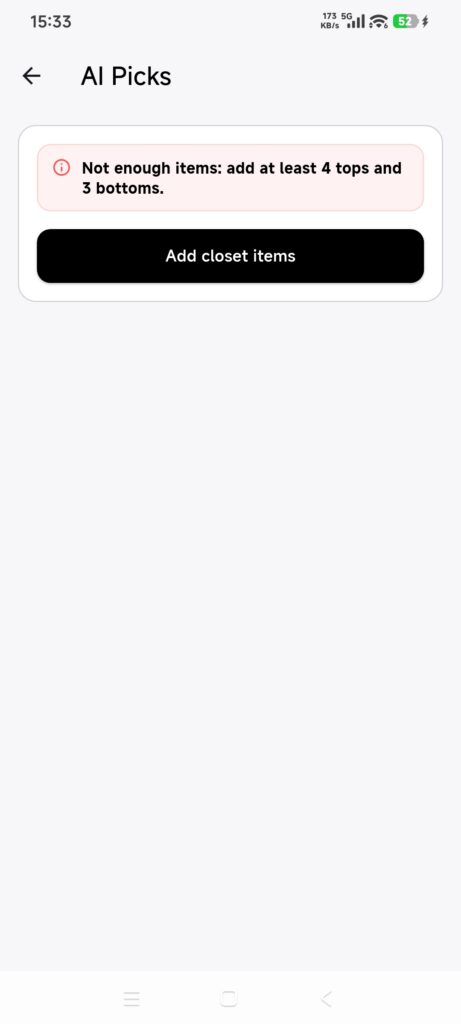
Quick answer: AI Picks automatically chooses eligible items from the current closet, generates outfit images, and adds completed results to Outfits. You cannot preview, hand-pick, remove, or replace the candidates before submission.
iOS and AndroidDressWise 4.0.8 (build 408) and later
Before you begin
Have at least 4 usable tops and 3 usable bottoms in the current closet. Dresses and sets do not replace this minimum.
Items must be correctly categorized, have usable images, and not be in Memory Box or Trash.
DressWise checks candidate images at submission, can upload pending local images, and may replace unavailable candidates with similar usable items. Full routine sync is not a fixed prerequisite.
Check that the account has AI Picks quota or enough Fashion Coins.
Submit AI Picks
Open AI Picks from the center AI button or Me > One-click AI.
Wait for the closet data to load.
If the page says items are missing, check the number of tops or bottoms and tap Add closet items.
Add and categorize items, then return to AI Picks.
When Add closet items changes to Generate AI Picks, the minimum is met.
Tap Generate AI Picks once. This submits immediately; it does not open a manual picker.
Keep the app and network available while images are checked or uploaded.
Wait for AI Picks submitted. If candidates remain insufficient, fix or add items before one more submission.
Check the Generating placeholder and progress.
When the task completes, reopen the page or pull to refresh.
Open the result, then check Outfits for the new Outfit and its linked items.
Confirm it worked
One Generating record appears after submission.
A completed result image opens.
The corresponding Outfit and linked items appear.
If AI Picks cannot run
Add closet items is shown: reach at least 4 usable tops and 3 usable bottoms.
There are enough items but the count is low: check categories, Trash state, and images.
A candidate image is unavailable: keep the original item and network available; DressWise already tries an on-demand upload or same-type replacement.
No manual picker is visible: automatic candidate selection is the current design.
Quota is unavailable: follow the Membership or Fashion Coins prompt and submit only once after purchase.
The task failed or the result will not open: check status, billing, Fashion Coins, and membership; do not submit repeatedly.