Open Sizes
- Open Me > Settings > Feature Settings > Sizes.
- The page opens on Common Sizes; Body Data is the other top tab.
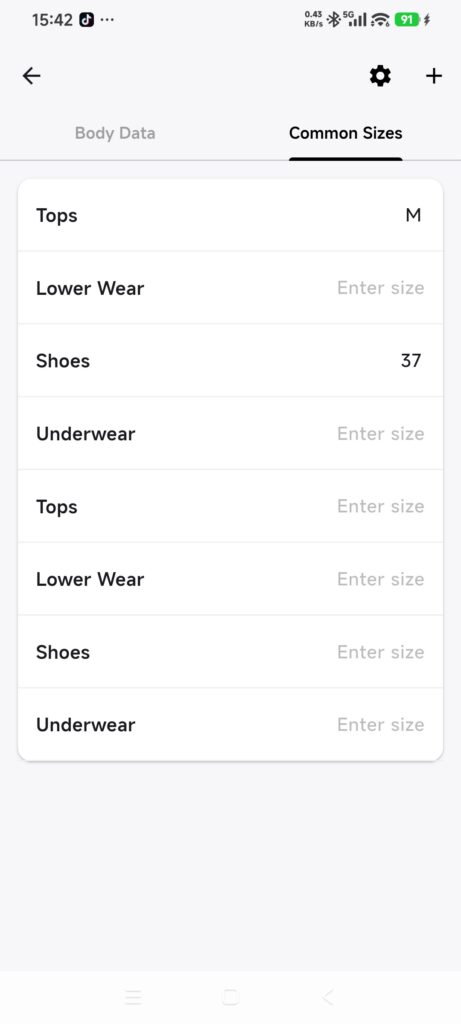
- Check that the current closet represents the person or collection you want to record.
Record body data
- Tap Body Data.
- Tap a field and enter a value.
- Use no more than three integer digits and one decimal place.
- Press Done or Return on the keyboard to submit the field.
- Repeat for each field. There is no single Save button.
- Reopen Sizes and verify the values.
Use your own consistent unit and keep it consistent in any external notes. DressWise does not currently provide a universal unit switch on this page.
Record usual sizes
- Stay on Common Sizes, or tap it if Body Data is selected.
- Find the relevant clothing category.
- Enter your usual size.
- Press Done or Return to submit that category.
- Reopen the page and verify the value.
Common Sizes and an item’s own Size field are separate. Changing Common Sizes does not rewrite existing items.
Confirm it worked
- Body values remain after reopening.
- The usual size appears under the intended category.
- Switching closets shows each closet’s own records.
If values disappear
- The value is rejected: check the three-integer, one-decimal limit.
- A value disappeared after returning: press Done or Return before leaving the field.
- You are unsure of the unit: use one consistent unit and do not mix systems.
- An item did not change: usual sizes do not update item details.