Filter and sort Outfits
- Open Outfit and tap the gear.
- Choose Outfit List.
- Tap the current sort, usually Recently Added on first entry.
- Choose a preset such as recently added, price, purchase date, or wear record.
- Tap Other to filter.
- Choose one or more occasions, seasons, or tags.
- Tap Confirm.
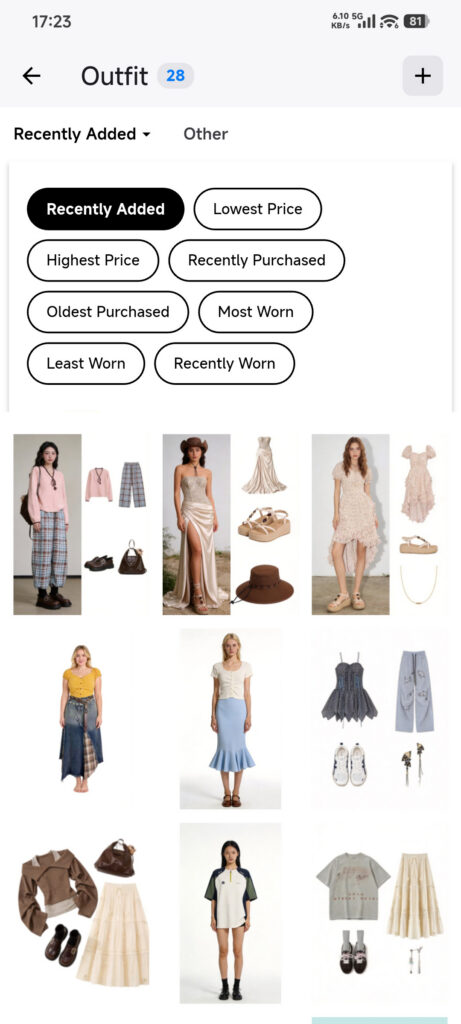
- To restore the full list, open Other, tap Reset, then tap Confirm.
There is no manual drag sorting. If there are no results, clear filters before assuming an Outfit is missing.
Manage occasions
- Return to the Outfit root and tap the gear.
- Choose Occasions.
- Tap the add button, enter a name, and save.
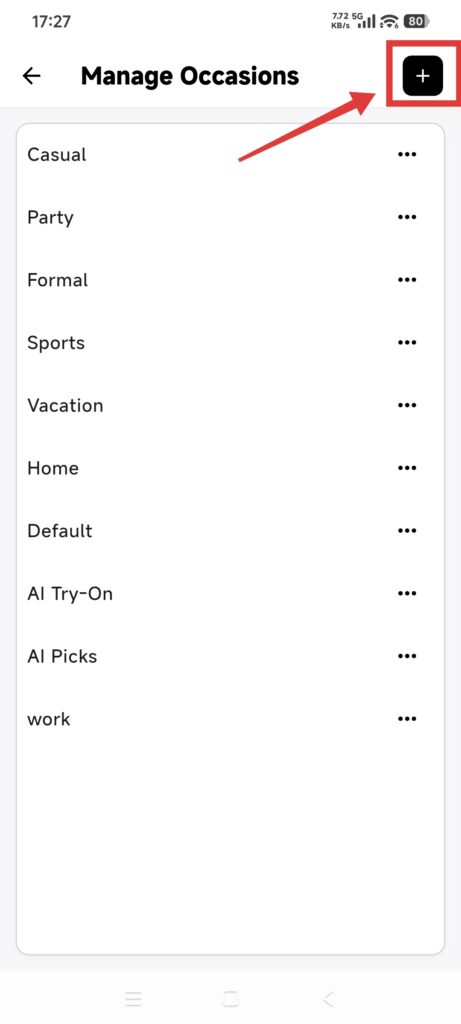
- Use the three-dot menu on an occasion to choose Edit or Delete.
- Save a rename, or read the impact notice before confirming deletion.
- Return to Outfit editing and check the available occasions.
Deleting an occasion does not delete Outfits; related entries move to the fallback occasion. Names are generally limited to 32 characters and unique at the same level.
Confirm it worked
- Filters show only matching Outfits.
- Reset restores the complete list.
- A new occasion is selectable in Outfit editing.
- Deleting an occasion keeps its Outfits and assigns the fallback occasion.
If the list looks wrong
- An Outfit is missing: open Other, tap Reset, then tap Confirm to clear filters.
- A new occasion is unavailable: return to Outfit editing and confirm that the value was saved before leaving the page.