Open closet management
- Open Closet.
- Tap the closet name at the top.
- Tap the gear to open Manage Closet.
You cannot delete the current closet. Switch to a closet you want to keep first.
Rename a closet
- Find the closet in Manage Closet.
- Open its edit page.
- Change the name and save.
- Return to the list and check the new name.
Names cannot be empty, may contain up to 32 characters, and must be unique. Renaming does not change items, outfits, or records.
Permanently delete a closet
- Switch to another closet that you want to keep.
- Return to Manage Closet and select the closet to remove.
- Open the deletion confirmation.
- Review the affected counts for items, outfits, inspiration, diaries, weather, relationships, settings, and AI records.
- Confirm that the correct closet is selected.
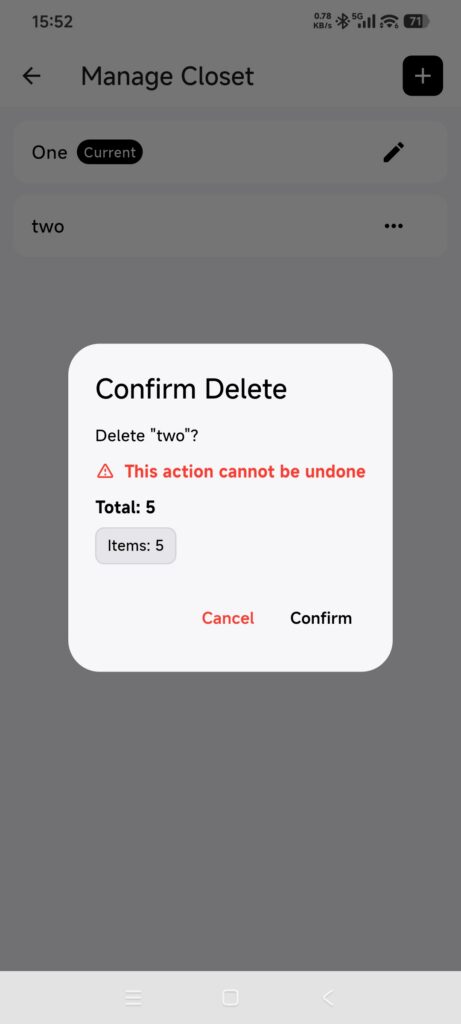
- Choose the final delete action and wait for it to finish.
- Check that the closet has disappeared from the list.
Deletion also removes related images and cannot be undone through Memory Box or Trash. Never delete a closet to troubleshoot sync.
Confirm it worked
- A renamed closet shows the new name throughout the app.
- A deleted closet no longer appears.
- The closet you kept still opens normally.
If you are unsure
- There is no delete option: the target may be the current closet. Switch first.
- There is only one closet: create and switch to another closet before deciding whether to delete it.
- The affected counts look wrong: cancel and inspect the closet before continuing.
- A closet was deleted by mistake: deletion is irreversible. Stop making further changes and contact support with the time and closet name, but recovery cannot be guaranteed.