Before you begin
- Have at least two closets.
- Open the item details or edit page.
- Choose a target closet other than the current one.
- Review whether related Inspiration, albums, diaries, and wear records may be copied; the current flow has no option to copy only the item.
Copy the item
- Open the item.
- Tap More at the bottom.
- Choose Copy to Closet.
- Check the closet list. The current closet is unavailable; other closets are selectable.
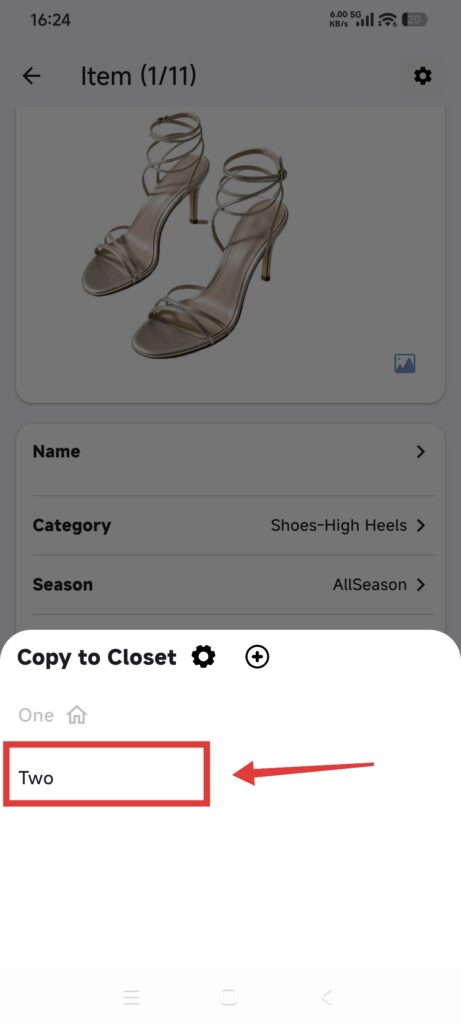
- Choose a target closet.
- Wait for Copied successfully.
- Switch to the target closet.
- Check the new item’s image, category, and details.
- Check related Inspiration, albums, Calendar, and diaries. Delete unwanted copies only after reviewing them.
DressWise reuses same-named categories in the target closet and creates missing parent or child categories. If the source item has no valid category, the copy goes to No Category. Related Inspiration and records may use the same name or original date in the target closet.
Do not confuse Copy with Move
Move to Closet changes which closet owns the original and may remove relationships to outfits in the current closet. If you want the item in both closets, choose Copy.
Confirm it worked
- The original item remains in the source closet.
- A new item appears in the target closet.
- Images and expected details open in both closets.
- Any copied relationships have been reviewed.
If copying does not look right
- The target is unavailable: it may be the current closet.
- The copy is missing: switch to the target closet and clear filters.
- Extra categories appeared: missing same-named categories are created by design.
- Extra Inspiration or records appeared: review and remove only confirmed duplicates.
- Move was selected by mistake: cancel immediately if possible, then inspect relationships before editing further.