Open option management
Open Me > Settings > Feature Settings > Closet Settings, then choose Categories, Colors, Brands, Item Sizes, or Locations. Check the current closet first.
Add or edit an option
- Choose an option type.
- Review its list and hierarchy.
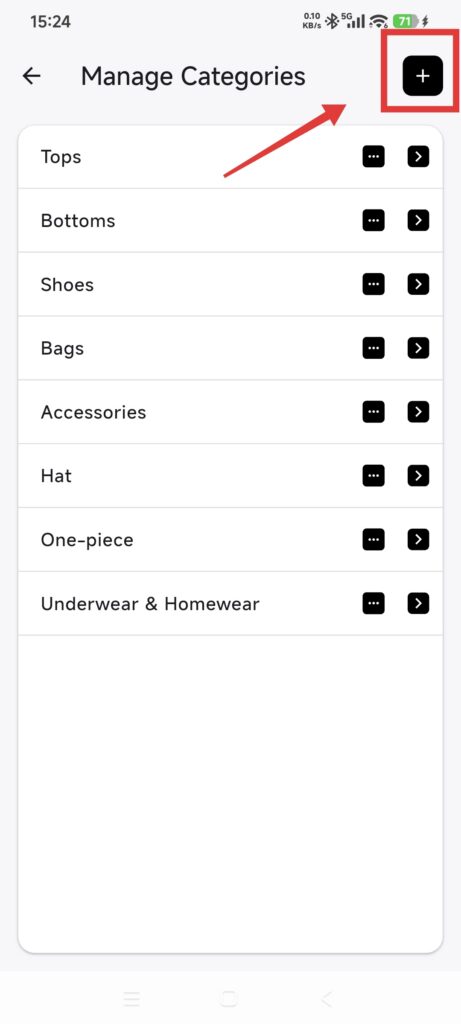
- Use the add control and enter a name.
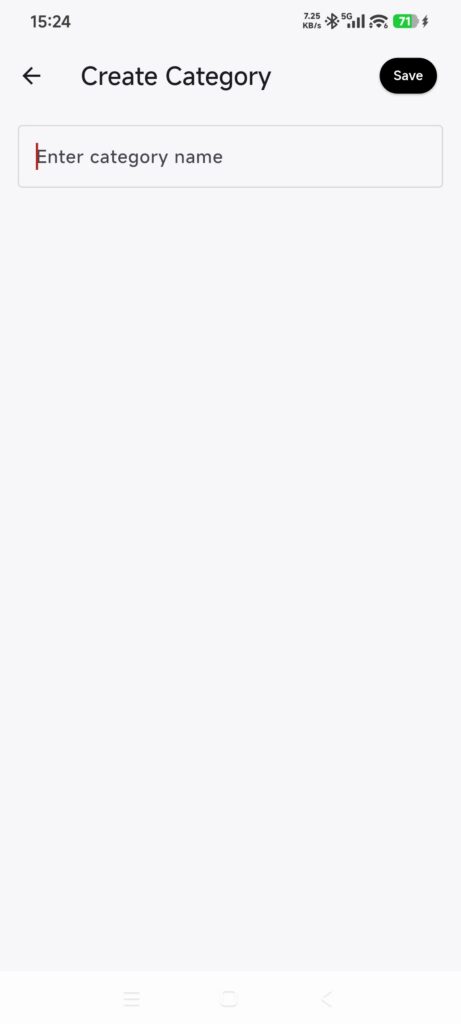
- Keep names within 32 characters and unique at the same level.
- Open an existing option to rename it and save.
- To delete an option, read the impact notice before confirming.
- Return to item editing and check that the option is available.
Categories and sizes may have parent and child levels. A parent size with children cannot be deleted until its children are handled.
Deleting a category, color, brand, size, or location that items already use may clear that field. Rename an option when you only need a wording change. When copying across closets, review how target options were mapped.
Confirm it worked
- The new option appears in the current closet’s management list.
- Item editing and filters offer it.
- Renamed values update where they are used.
- Deleted values are no longer offered, and affected fields match the confirmation notice.
If an option is unavailable
- Name already exists: edit the existing option instead of creating a duplicate.
- A parent size cannot be deleted: handle its child sizes first.
- Another closet cannot see the option: manage it separately in that closet.
- An item field became empty after deletion: edit affected items and choose a replacement.