Create a diary
- Open Calendar and select the date.
- Open the add-record menu and choose Diary.
- Enter the day’s text.
- Add up to 9 images.
- Check the order, text, and images.
- Save and return to the day’s details.
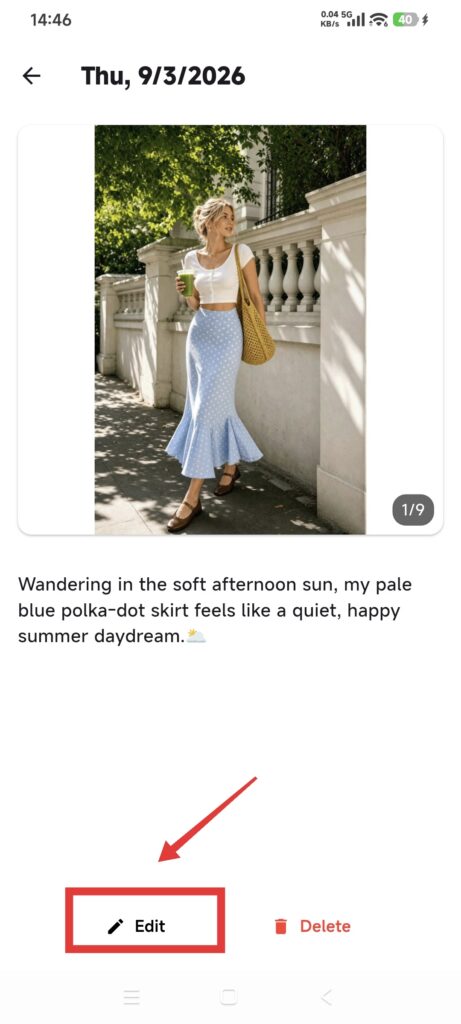
Edit a diary
- Open the diary from the day’s details.
- Edit text or add and remove images.
- Save and reopen it to verify.
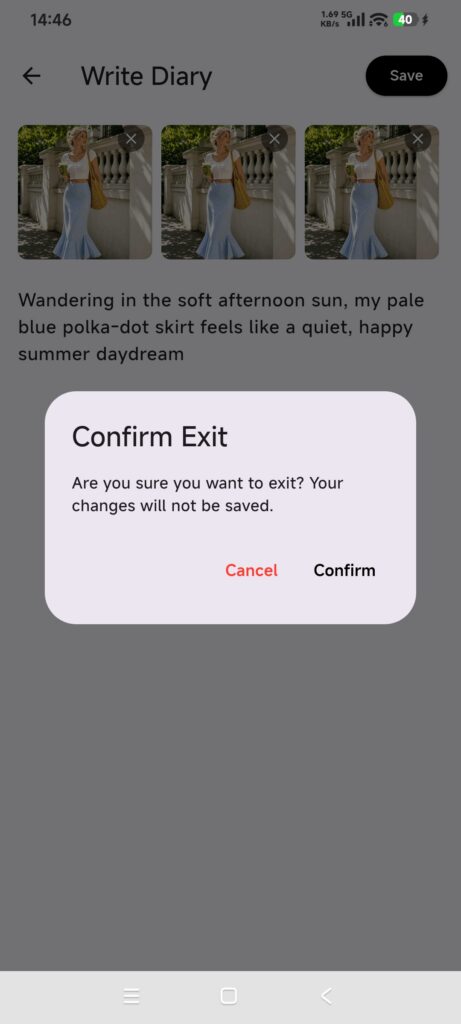
If you go back with unsaved changes, choose to continue editing or confirm exit. Confirming exit discards unsaved text and a new diary/date relationship. Selecting an image may already create a background file record, so leaving does not necessarily undo that processing.
Delete a diary
- Open the diary.
- Tap Delete and read the confirmation dialog.
- Confirm that the correct diary is open; tap Cancel to keep it.
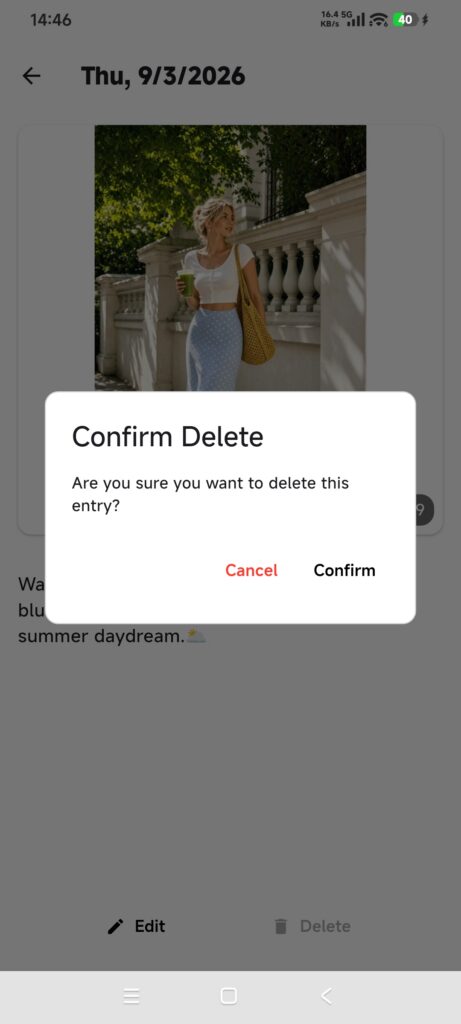
- Tap the final Confirm action.
- Check that the diary is gone from the day’s details.
Deletion is permanent and does not use Trash. It removes the diary text and associated image records but does not delete items or Outfits recorded on the same date.
Confirm it worked
- The day’s details show the diary text or cover.
- Reopening keeps the text and image count.
- The ninth image can be added, but a tenth is not offered.
- Deletion removes the diary while other date records remain.
If something goes wrong
- Cannot add another image: the limit is 9; remove one first.
- An exit prompt appears: continue editing and save if you need the changes.
- An image was selected by mistake: remove it in the editor and save; do not treat a direct exit as file cleanup.
- The diary is gone by mistake: there is no in-app restore. Recreate it from any copies of the text and images.